1. Don't have Golf TAGS yet? Learn more and get your set at www.golfpadgps.com/tags. Using Golf Pad Classic on Android? Check out this article for step-by-step instructions instead.
Once you have the TAGS, please see this page for the initial setup instructions. We strongly recommend to set up TAGS and verify tracking works well at home, before you head out to the golf course.
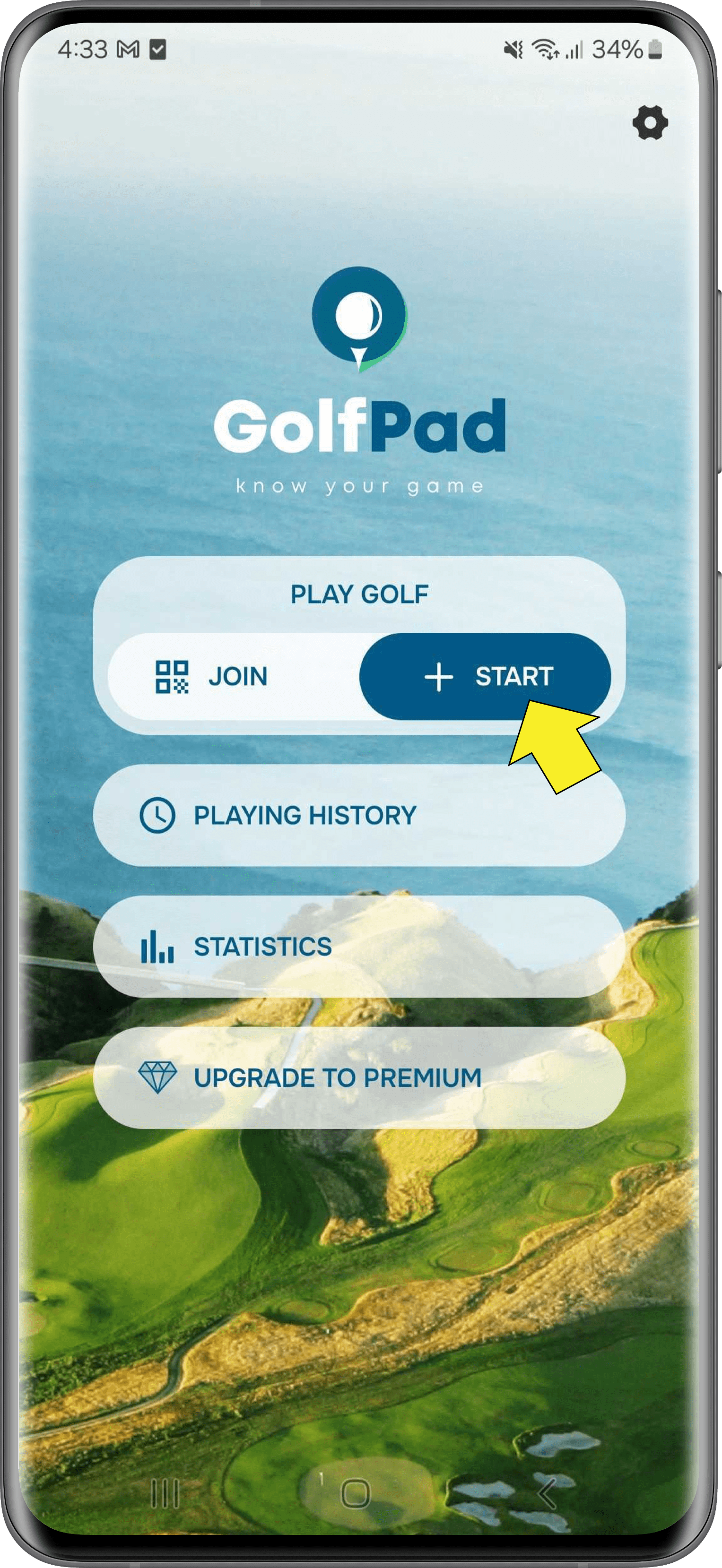
2. Open Golf Pad app on your phone, start a new round as you usually do.
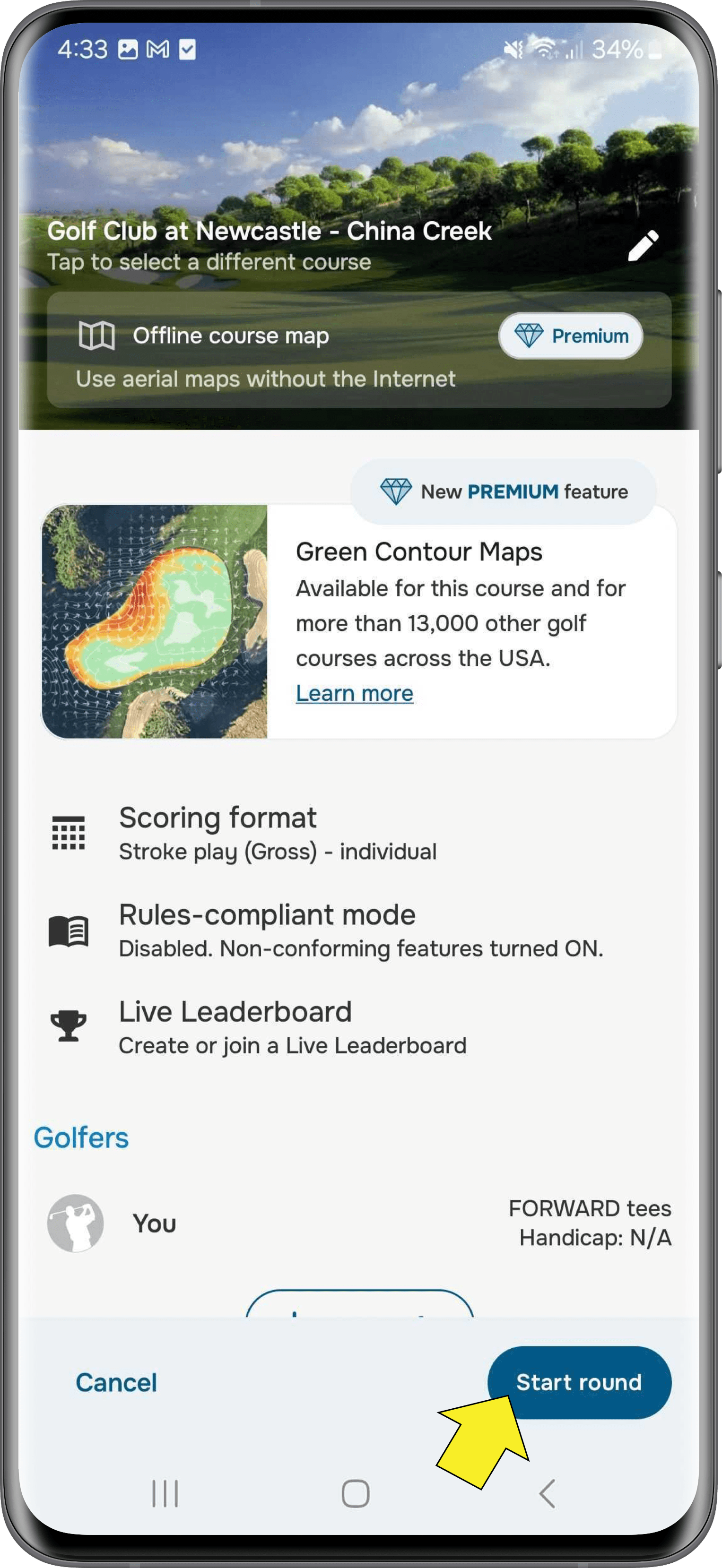
3. The first time you start a round with Golf Pad TAGS, you will have the option to use test mode to practice.
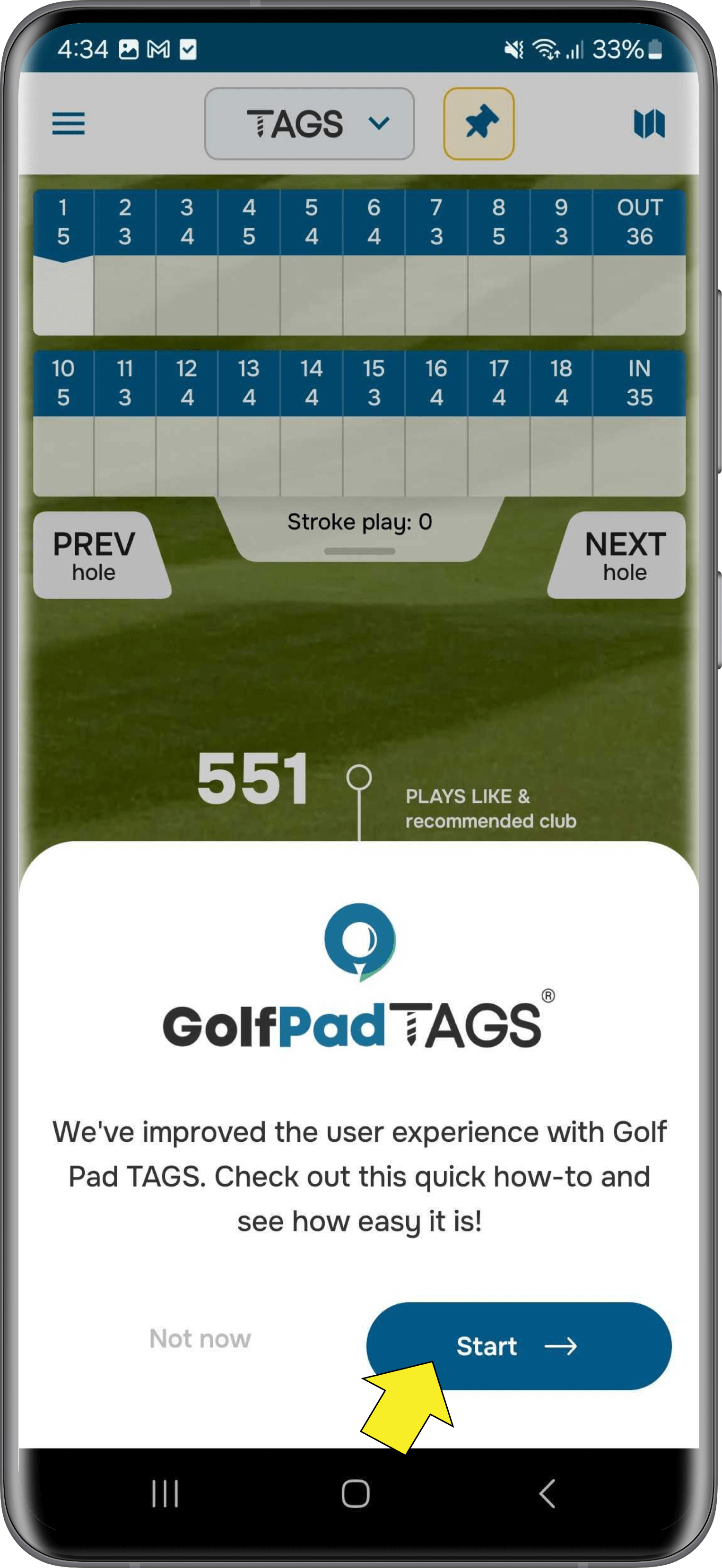
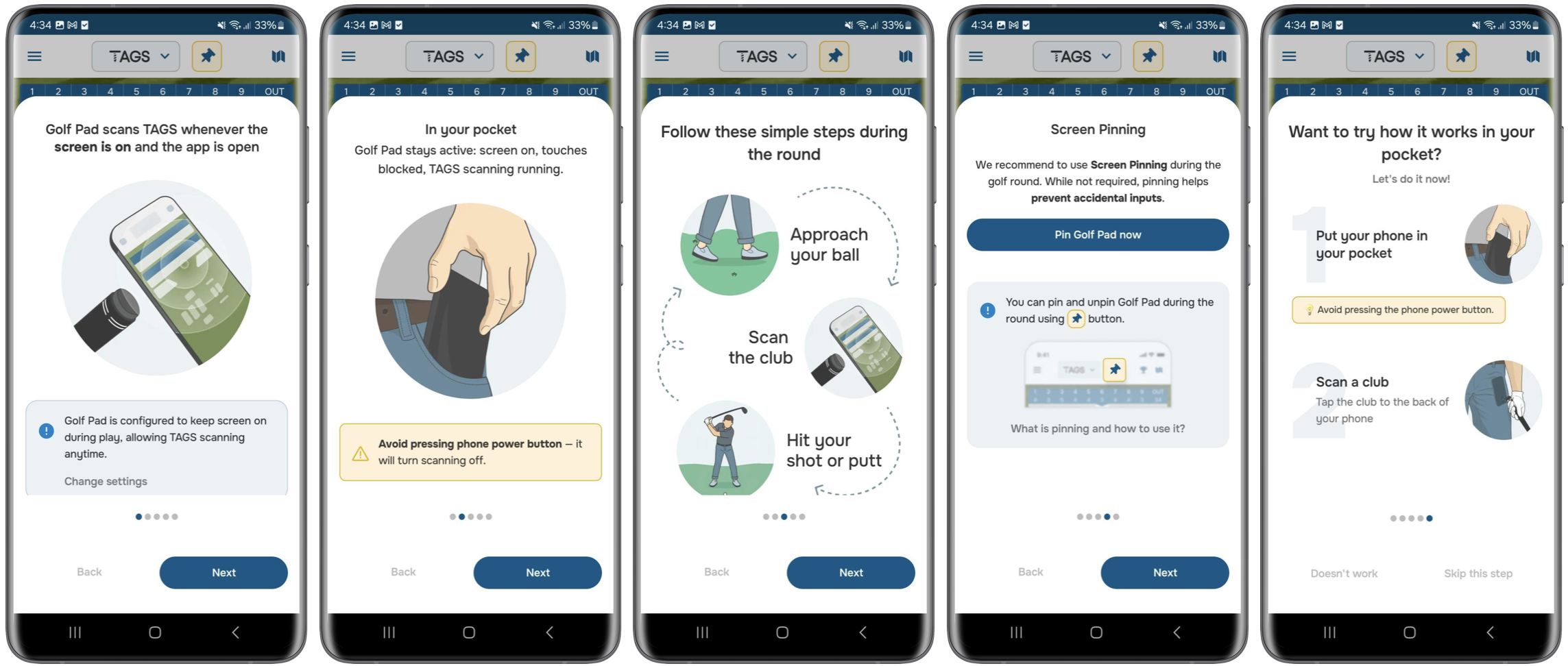
Please note that you can always access test mode and check the instructions anytime by tapping TAGS at the top of the screen and selecting "How TAGS work".
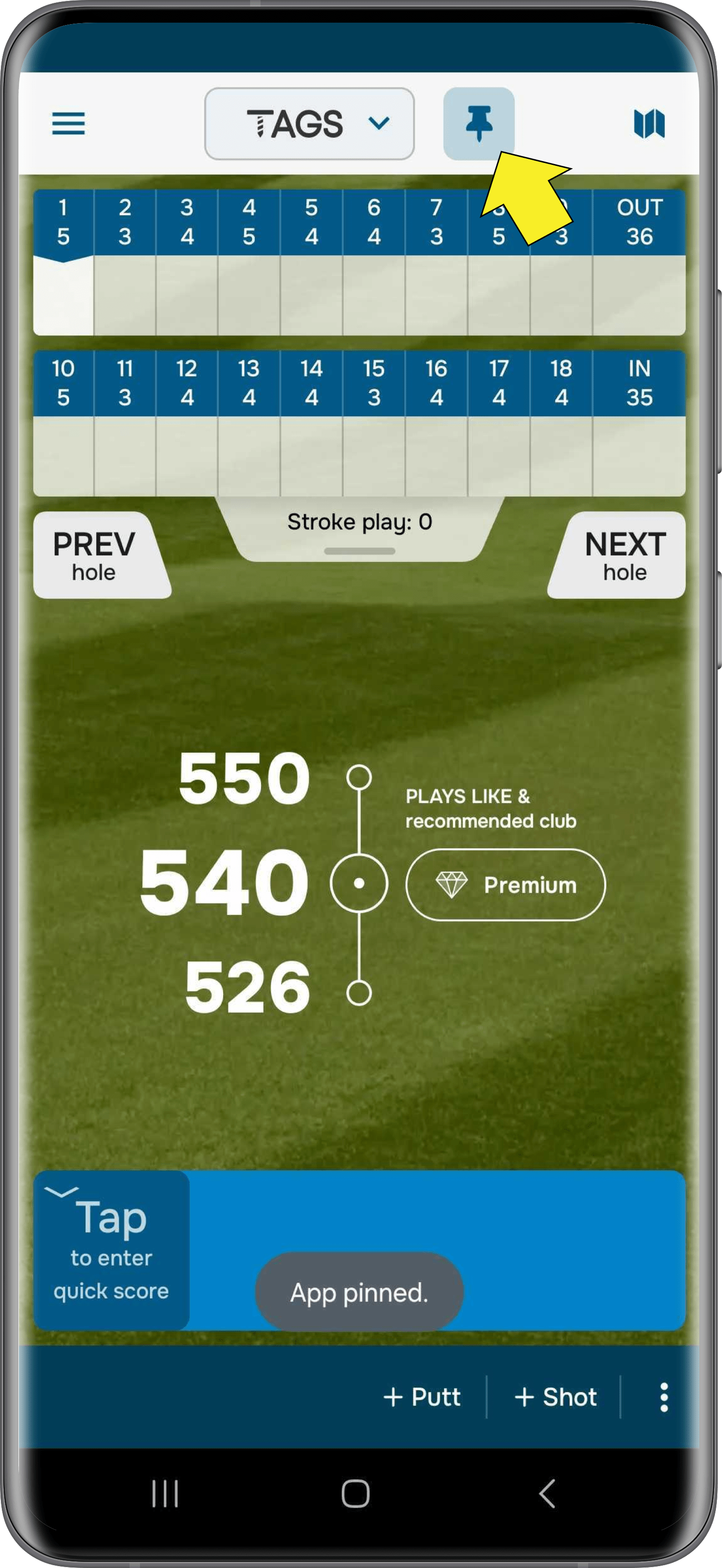
4. At the start of the round, you'll be prompted to pin the app. You can do this right away from the prompt or later by tapping the pin button at the top of the screen. Pinning is optional, but we recommend it as it helps prevent accidental inputs. More information about pinning can be found here.

5. You can scan your TAGS while your phone screen is on with the app open, or while your phone is in your pocket.
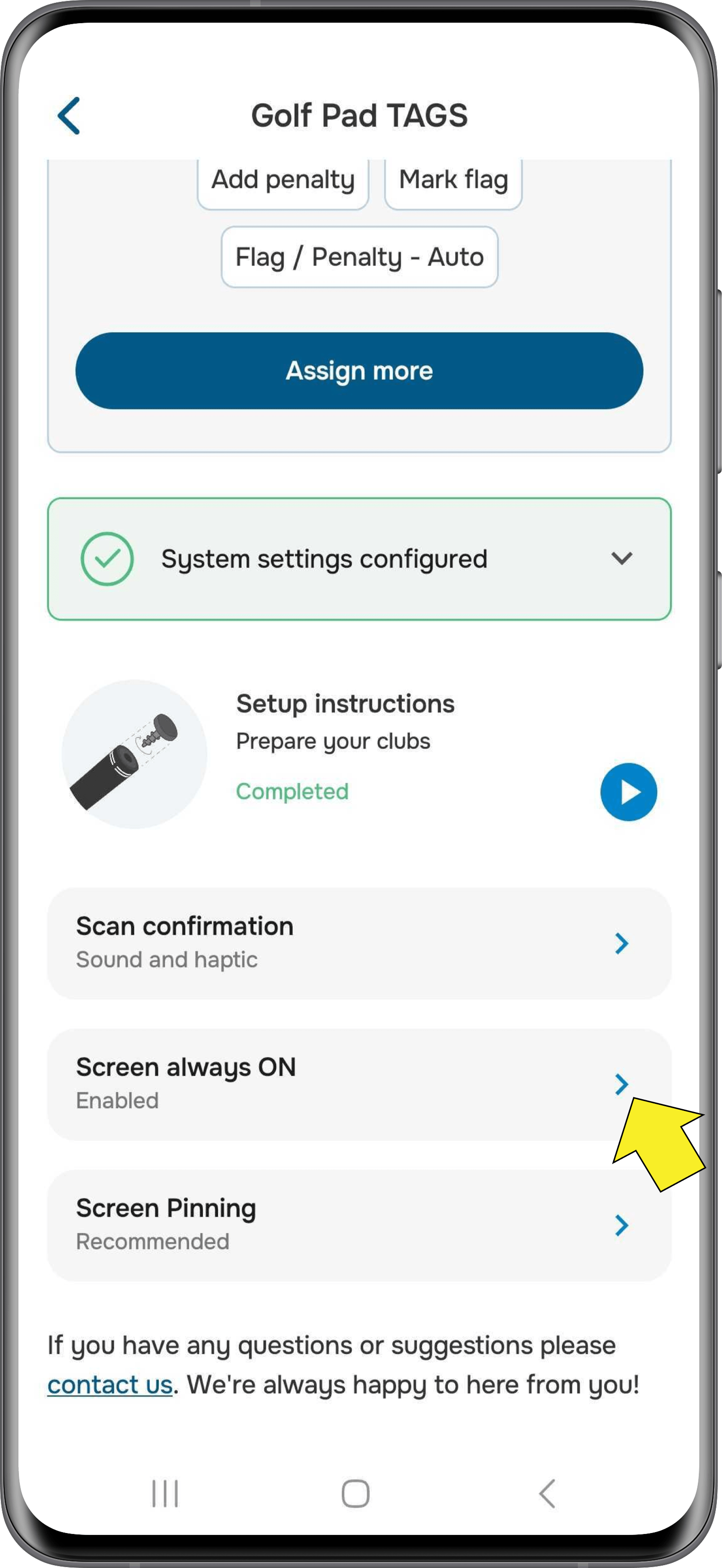
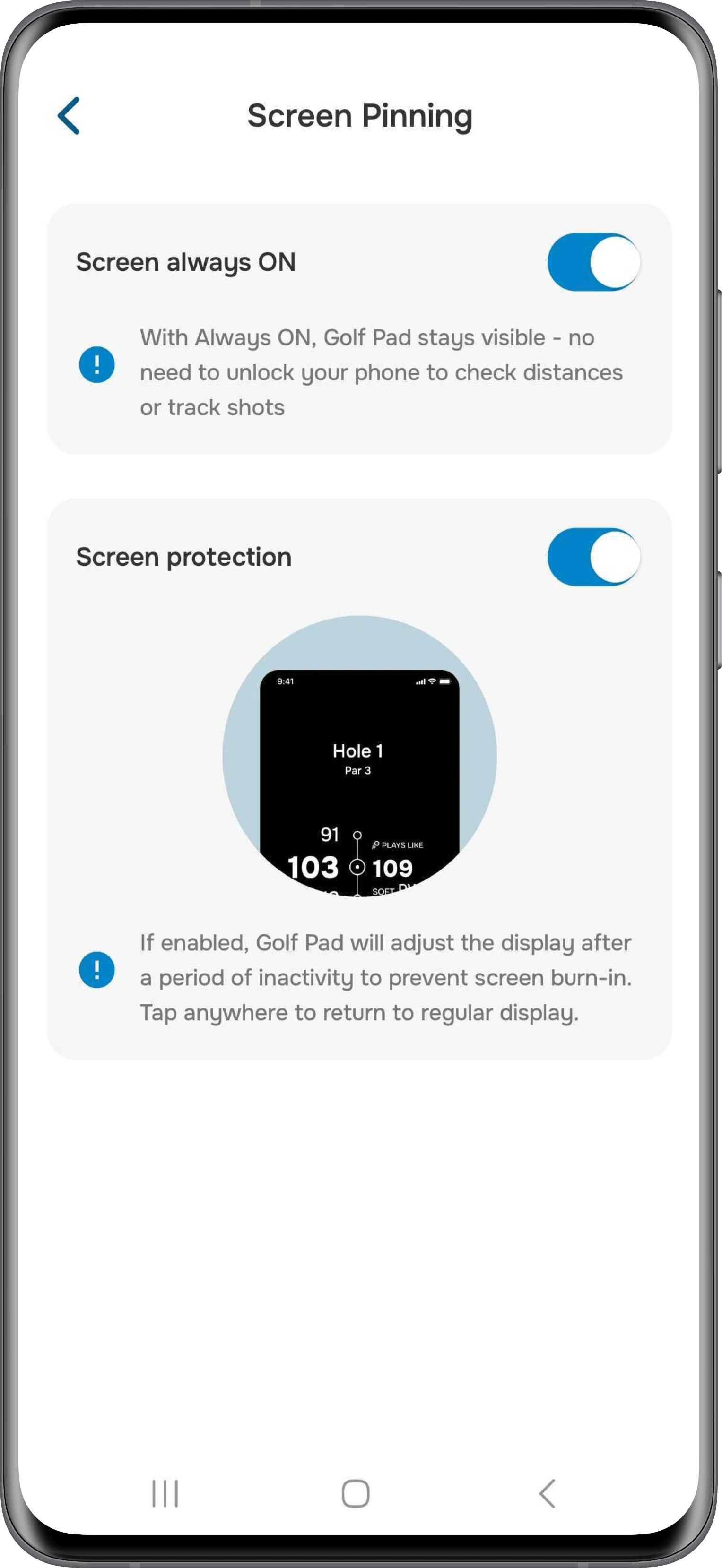
- If you choose the first option, the screen will be set to "always on", keeping the app visible throughout your round. This way, you won't need to unlock your phone to check distances or track shots. You can adjust this setting during test mode or later in TAGS settings > Screen always ON. NOTE: We recommend enabling screen protection in the settings to prevent screen burn-in.
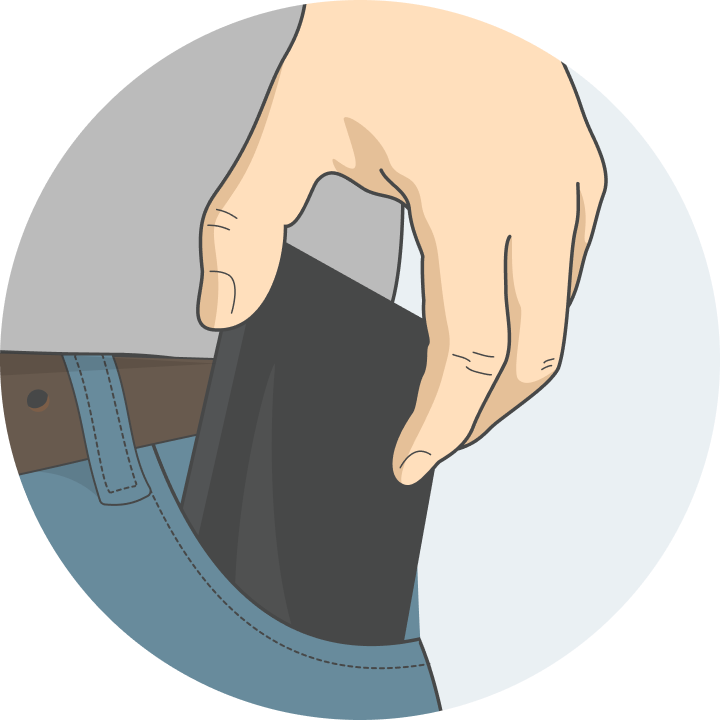
You can keep your phone in your pocket during the round – just place it there as shown in the image below: screen facing inward and the phone placed upside down. The screen will remain on, but accidental touches will be blocked. NOTE: We recommend avoiding pressing the power button. However, if you prefer to use it, make sure to pin the app before doing so.
6. Before making each shot, tap the club you are using to the back of the phone. You will feel a vibration and an audible confirmation. Golf Pad app just recorded the position of the shot and the club you used. Repeat for each shot or putt you make. For example, if you play a par-4 hole, you will scan you driver on the tee box, the iron when you are in the fairway, and the putter every time you hit a putt on the green.
Golf Pad will even auto-advance to the next hole, so you can keep the phone away throughout the round.
Have questions? Contact our support team for help!
Was this article helpful?
That’s Great!
Thank you for your feedback
Sorry! We couldn't be helpful
Thank you for your feedback
Feedback sent
We appreciate your effort and will try to fix the article